



BILL Vendor Setup & Navigation Guide
- Home
- Forms, Resources, Tools & Technology
- BILL Vendor Setup & Navigation Guide
As a vendor or participant team member submitting payment requests, you will have an account set up in BILL so that invoices or reimbursements can be processed. By default, payments are processed as paper checks, but you may connect with your BILL profile and set up e-payments for more timely payments. You can also review what payment requests are currently outstanding and what payments have already been made.
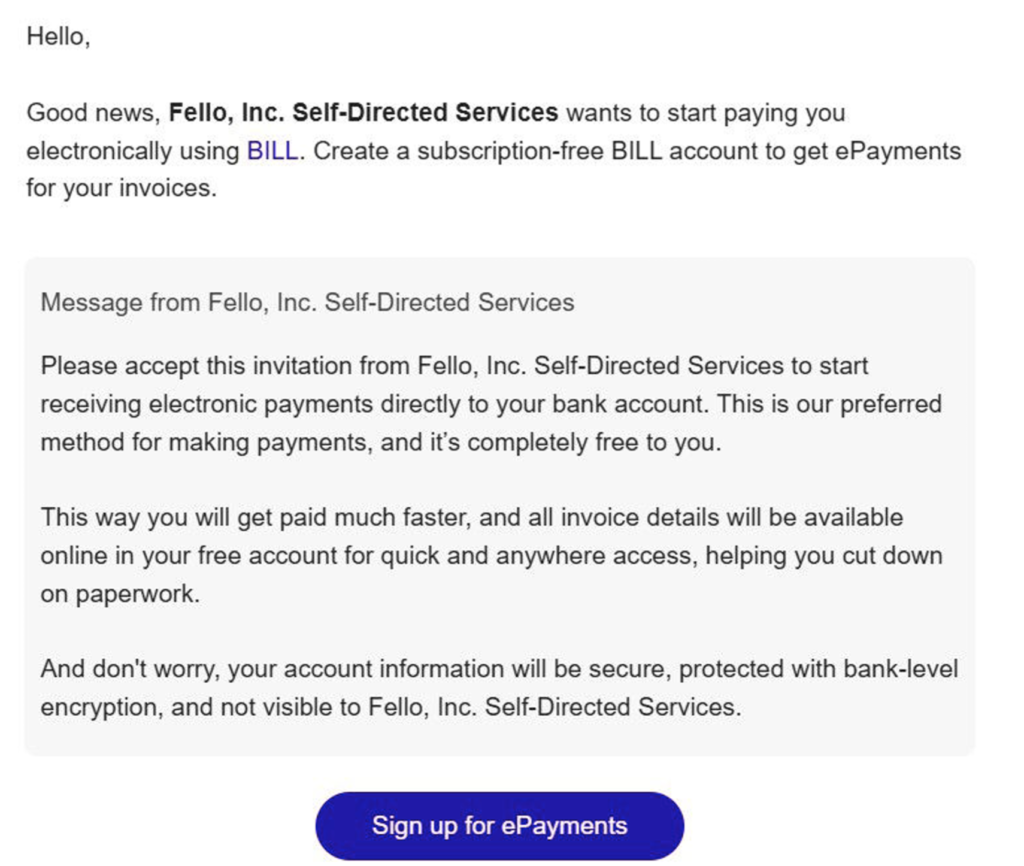
Note: This e-mail may be captured by your Spam or Junk filter, so you could need to check these folders for the invitation.
Once the email is received, click “Sign up for ePayments” to create your BILL account:
Fill in your first and last name then create a password for your profile.
Set up your security verification through a text or phone call.
You will be asked if you would like to use other features in BILL. Select “Skip This Step.”
Next you will be asked what your relationship is to Fello, Inc. Self-Directed Services. Please select the appropriate option based on your business and the payment requests you will submit.
All vendors submitting payment requests for disbursement that will be captured on a 1099 tax form should select “I’m with a business” or “I’m an independent contractor.”
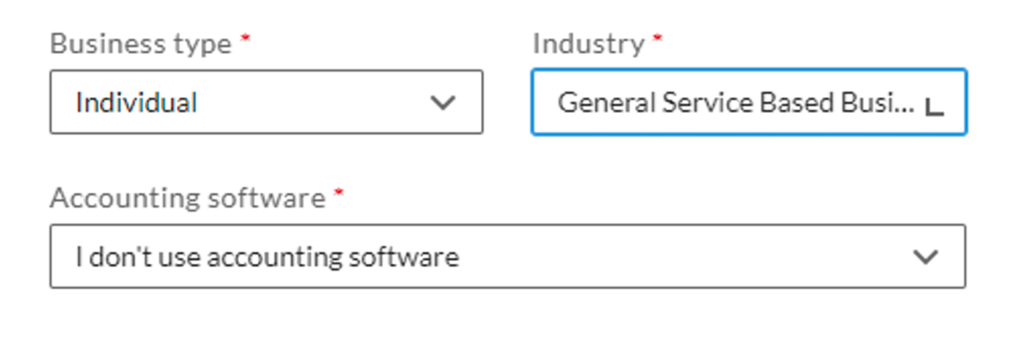
You may be asked to clarify your business type, but can select the following options:
- Business type: Individual
- Industry: General Service Based Business
- Accounting software: I don’t use accounting software
All employees or team members seeking reimbursement payments that will not appear on a 1099 tax form should select “I’m none of the above.”
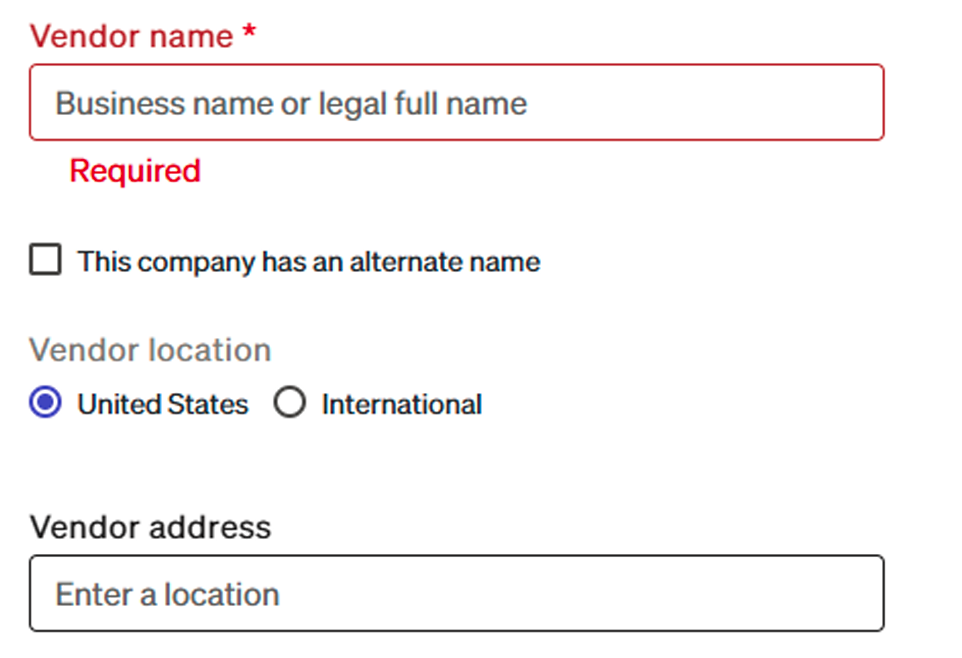
Complete the following page with your basic information such as social security number or Tax ID, phone number, and mailing address.
Add your bank information. Please be aware that this information is encrypted and will not be visible to The Fello team.
Navigating your BILL
With setup complete, you will now be able to log in to BILL and review your payment requests.
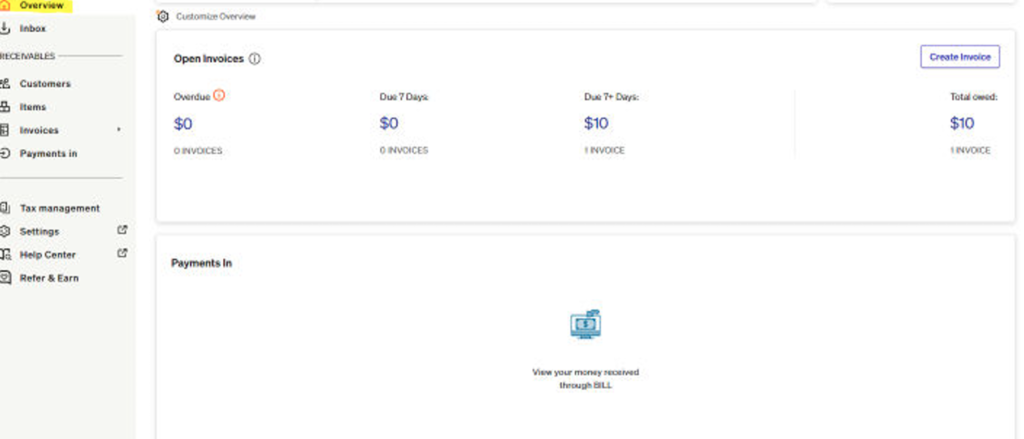
The Overview tab will show you a summary of what invoices are currently open, as well as a summary of what payments have been sent to you.
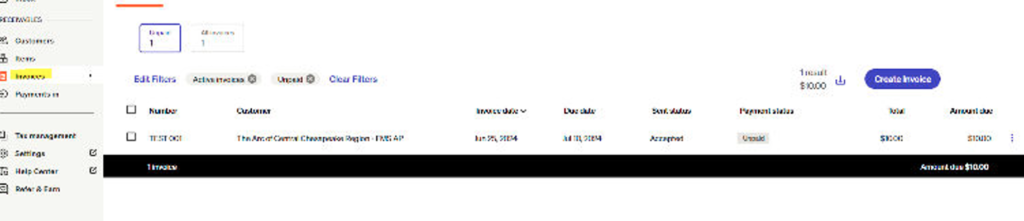
The Invoices tab will list each payment request that has been processed or is being processed.
You can click on each invoice to review the details and any documents that might be attached.
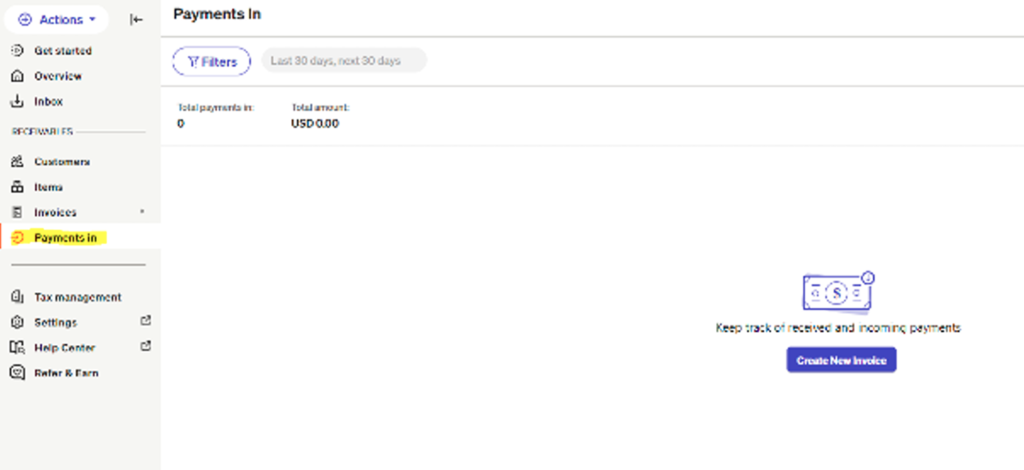
The Payments In tab will display each payment that has been sent to you or is currently incoming to your account.
